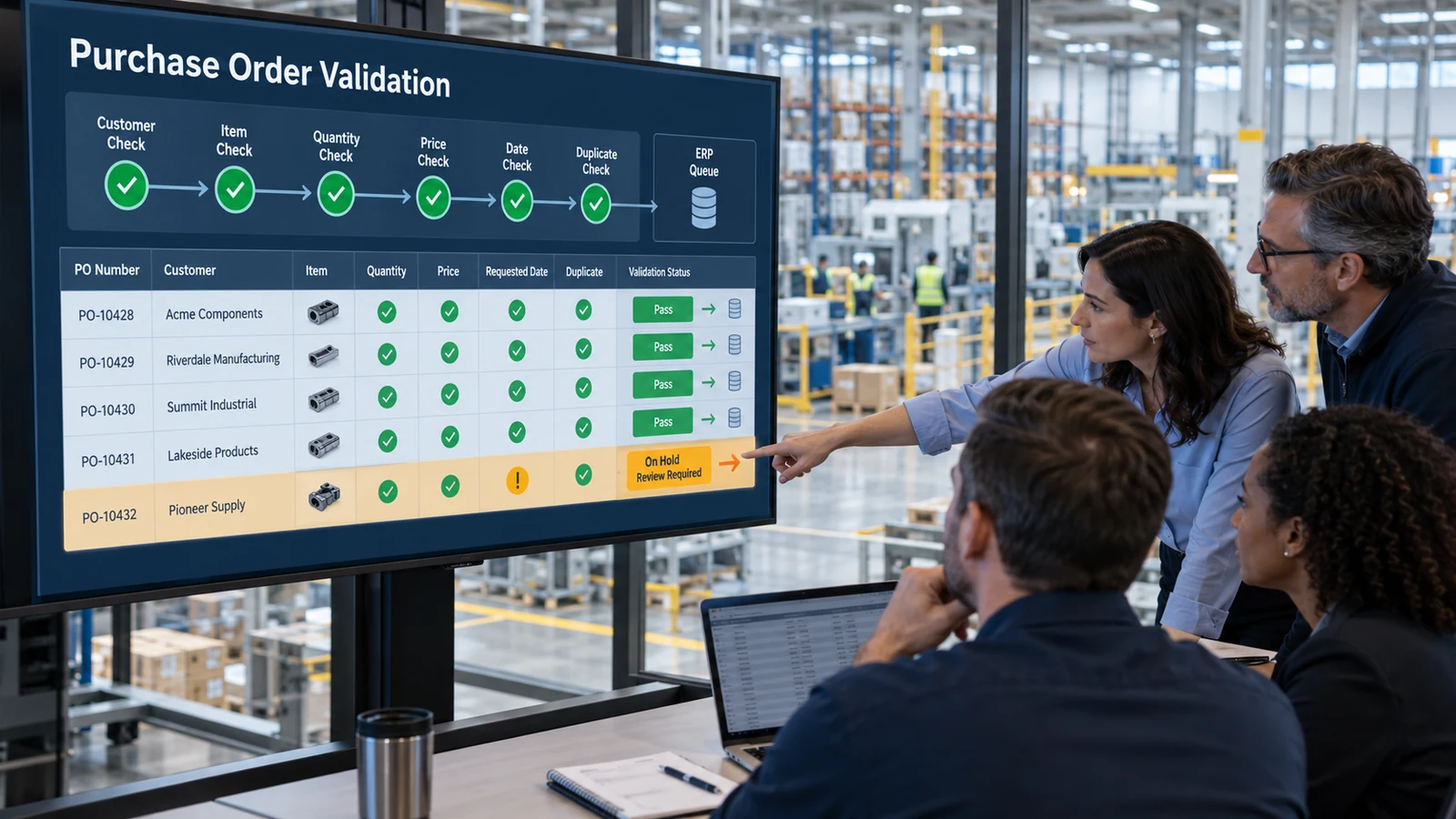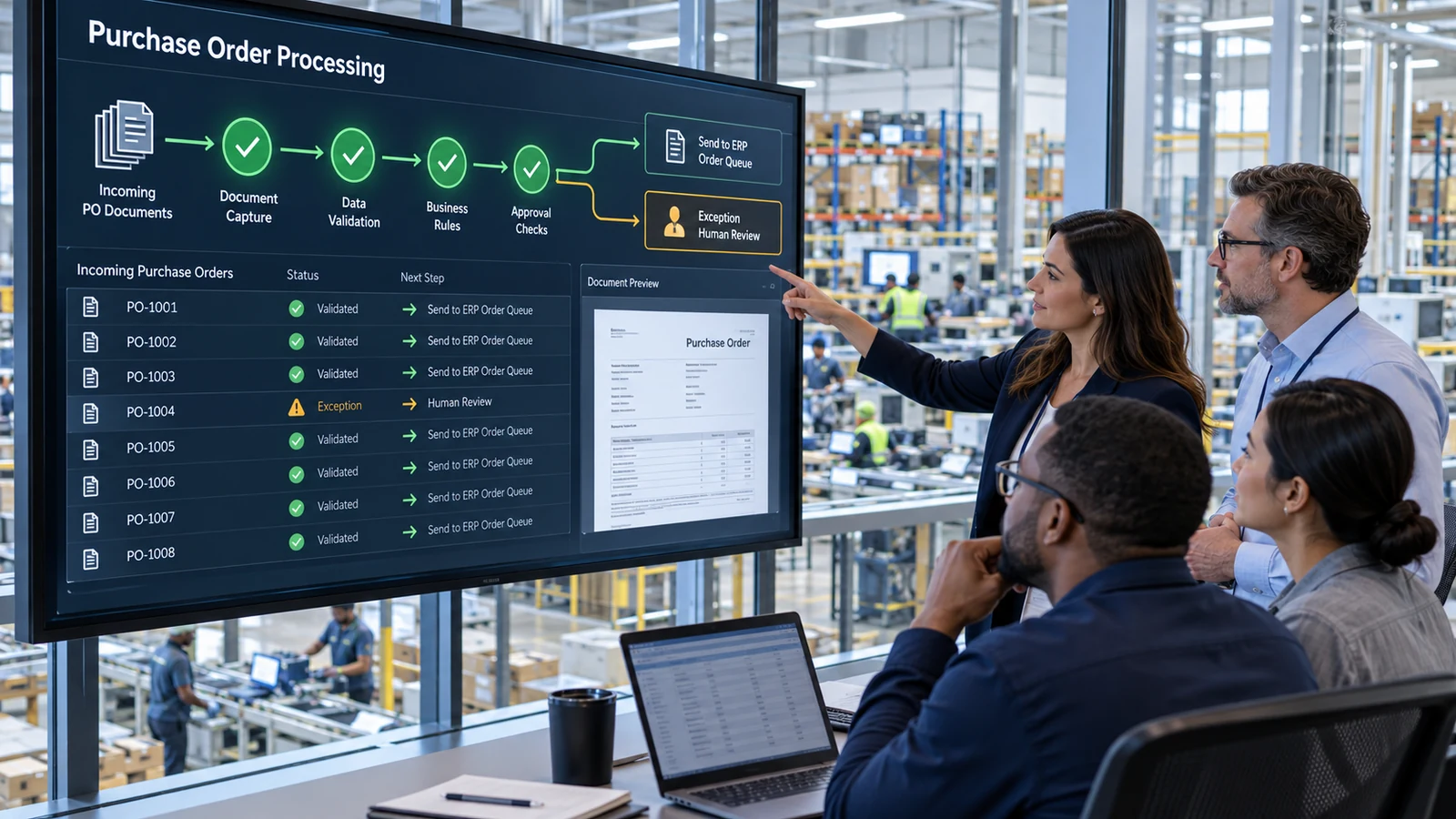
Sales order automation KPIs should show whether order processing is becoming faster, more reliable, and easier to manage—not simply whether more orders are labeled “automated.”
A high automation rate can hide growing exceptions, incorrect ERP orders, delayed reviews, or customers whose documents never qualify. A lower rate can still represent strong performance when the workflow correctly stops risky orders and gives employees the context to resolve them quickly.
This guide gives manufacturers and distributors a practical KPI framework for establishing a baseline, evaluating a pilot, controlling go-live, and improving sales order automation over time.
Start with the decisions the metrics must support
Before building a dashboard, decide what questions it should answer.
Operations leaders may need to know:
- Is the order backlog improving?
- Which customers create the most manual work?
- Are exceptions reaching the correct team?
- Is review capacity sufficient during peak periods?
- Are service targets being met?
ERP and IT teams may need to know:
- Are order-creation transactions succeeding?
- Which mappings or rules fail most often?
- Are retries controlled?
- Did a configuration change affect results?
- Are technical failures visible separately from business exceptions?
Establish a comparable baseline
Measure the current process before introducing automation. Otherwise, the team may know what changed but not whether the change improved the operation.
Capture baseline measures such as:
- Orders and lines received
- Orders by channel and document format
- Active entry time
- Elapsed time from receipt to ERP creation
- Queue waiting time
- Exceptions and approval delays
- Corrections after entry
- Backlog and aging
- Overtime or temporary staffing
- Customer inquiries about order status
Use the same definitions before and after implementation. If “processing time” means active keyboard time in the baseline but total elapsed time after go-live, the comparison is misleading.
Segment the baseline by customer, order type, business unit, channel, and document format. An average can hide a small group of complex orders that consumes a large part of the team’s capacity.
The order entry automation implementation guide explains how to collect a baseline and structure a representative pilot.
Measure incoming demand
Automation performance must be interpreted against the workload entering the process.
Orders received
Count unique customer orders, not emails or attachments. One email may contain several orders, while a revised order may arrive in a new message.
Lines received
Line volume adds context because a five-line order and a 200-line spreadsheet require different amounts of work.
Volume by channel
Separate email, portal, EDI, spreadsheet, PDF, scan, and other intake routes. Channel mix affects capture and review requirements.
Peak volume
Track daily or hourly peaks, not only monthly totals. A process that performs well on average may still create a queue every Monday morning or at month-end.
These demand measures form the denominator for most other KPIs.
Separate active time from elapsed time
“Order processing time” should not be one undifferentiated number.
Active processing time
Time employees spend reviewing, correcting, mapping, approving, or manually entering an order.
Queue waiting time
Time the order waits before someone begins or resumes work.
External waiting time
Time waiting for a customer, sales representative, pricing team, or other external decision.
Technical processing time
Time used for document processing, validation, or ERP transactions.
Total elapsed time
Time from order receipt to successful ERP creation or another clearly defined completion point.
Report medians and percentiles when possible, because a small number of delayed orders can distort an average. More importantly, preserve the reason for the delay. Reducing active entry time does not help the customer if unresolved exceptions create a larger waiting queue.
The automated order entry guide describes the complete flow from customer purchase order to ERP sales order.
Measure automation coverage by stage
One automation percentage cannot explain where the workflow succeeds or fails. Measure coverage at each stage.
Useful measures include:
- Orders successfully classified
- Orders with required fields extracted
- Customers matched to ERP accounts
- Lines matched to ERP items
- Units resolved through approved mappings
- Orders passing validation
- Orders creating valid ERP drafts
- Orders completed without routine human review
An order can pass capture but fail customer-item mapping. Another can match every field but require a pricing approval. Stage-level measures identify the actual bottleneck.
Define the denominator for every rate. “Item match rate” could mean matched lines divided by all lines, by eligible lines, or by orders containing customer item numbers. The dashboard should make that choice explicit.
Treat touchless rate as an eligibility result
Touchless rate is the share of orders that complete the approved workflow without normal human intervention. It is useful, but it should never stand alone.
Pair it with:
- Eligible order rate
- Exception rate
- Post-creation correction rate
- Duplicate prevention
- First-pass ERP creation
- Customer and order-type mix
Touchless performance should increase because mappings, rules, document coverage, and process quality improved—not because review thresholds were weakened.
The touchless order processing guide explains how eligibility rules determine which orders can safely proceed.
Measure quality before and after ERP creation
A fast workflow that creates incorrect orders transfers work downstream.
Critical-field accuracy
Track correctness for fields with operational or commercial impact, such as customer, ship-to, item, unit, quantity, price, currency, and requested date.
Reviewer correction rate
Measure how often employees change proposed values before ERP creation. Segment corrections by field, customer, and cause.
Post-creation change rate
Track changes after the ERP order is created. Separate normal customer revisions from corrections caused by capture, mapping, validation, or integration problems.
Duplicate order attempts
Count duplicates detected before creation and any duplicates that reached the ERP.
First-pass ERP creation
Measure orders created successfully without a technical retry or data correction. This connects document and business quality to actual ERP execution.
The order validation automation guide describes how validation results should distinguish pass, warning, review, blocked, and technical states.
Make exception metrics operational
An overall exception rate is only the beginning.
Track exceptions by:
- Document quality
- Customer or ship-to
- Product mapping
- Unit or packaging
- Price or discount
- Requested date
- Duplicate or revision
- Missing approval
- ERP validation
- Technical integration
For each category, measure:
- Count and rate
- Age
- Time to first action
- Resolution time
- Reassignment rate
- Reopen rate
- Override rate
- Current owner
- Recurrence by customer or document type
This reveals whether the organization has an automation limitation, a master-data problem, a commercial-policy issue, or a queue-ownership problem.
The sales order exception handling guide provides a practical model for routing, ownership, escalation, and root-cause analysis.
Monitor ERP transaction reliability
Document processing is incomplete until the intended ERP transaction has a confirmed outcome.
Measure:
- ERP creation attempts
- Successful creations
- Validation rejections
- Authentication or permission failures
- Timeouts
- Controlled retries
- Retry success
- Duplicate-prevention events
- Transactions requiring technical intervention
- Time spent in a failed state
Keep business rejections separate from infrastructure failures. An inactive item is not the same as an unavailable ERP endpoint.
Monitor idempotency controls where applicable: a retry should not create a second order after the first transaction succeeded but the response was delayed.
The AI sales order automation and ERP integration guide explains the control boundary between the automation workflow and ERP.
Track reviewer workload and backlog
Automation changes the work rather than simply removing it. Employees may spend less time typing but more time resolving complex issues.
Useful workload measures include:
- Orders awaiting review
- Open exceptions
- Oldest open item
- Backlog by owner and category
- Review minutes per order
- Exceptions resolved per reviewer
- Orders waiting for an external response
- Work reassigned or escalated
- Peak queue size
- Manual fallback volume
Do not use reviewer throughput as an individual performance ranking without context. One employee may handle difficult pricing or master-data cases while another processes simple confirmations.
The goal is capacity planning and process improvement, not encouraging reviewers to close work before it is safe.
Connect operational KPIs to financial outcomes
Financial measures should be derived from observed workflow data.
Possible inputs include:
- Active labor time reduced
- Overtime avoided
- Temporary staffing avoided
- Rework reduced
- Post-creation corrections reduced
- Capacity released for other work
- Implementation and subscription costs
- Internal IT and master-data effort
- Ongoing support and maintenance
Use the order entry automation ROI guide to build a transparent financial model.
Segment every important KPI
A single company-wide metric rarely tells the full story.
Segment results by:
- Customer
- Business unit
- Order type
- Intake channel
- Document format
- Product group
- Sales organization
- Warehouse
- Reviewer team
- Automation version or rule set
Segmentation helps identify scalable success. If overall touchless rate rises because one high-volume customer uses a stable spreadsheet, the organization should not assume every customer is ready for the same control level.
Use a balanced KPI scorecard
A practical scorecard should combine demand, speed, quality, automation, exceptions, and technical reliability.
| Area | Example KPI | Decision supported |
|---|---|---|
| Demand | Orders and lines received | Capacity planning |
| Speed | Median receipt-to-ERP time | Service improvement |
| Workload | Active review time | Staffing and workflow design |
| Coverage | Orders passing each automation stage | Bottleneck analysis |
| Quality | Critical-field correction rate | Capture and mapping improvement |
| Exceptions | Rate and age by category | Ownership and root-cause work |
| ERP reliability | First-pass creation rate | Integration improvement |
| Backlog | Open orders and oldest age | Daily prioritization |
| Automation | Eligible and touchless order rates | Controlled expansion |
| Financial | Cost per processed order | Business-case tracking |
Avoid setting aggressive targets before a baseline exists. First establish stable definitions and trustworthy data, then agree on target ranges with operations and technical owners.
Avoid common measurement mistakes
Be cautious when:
- Email count is used as order count
- Averages hide old or complex orders
- Touchless rate is reported without corrections
- Business exceptions and technical failures are combined
- Customer revisions are counted as automation errors
- Review time excludes waiting or reassignment
- A changing customer mix is ignored
- Metrics lack a consistent denominator
- Saved time is reported as cash savings automatically
- Dashboard totals cannot be traced to order-level evidence
Document metric definitions and version changes. If a definition changes, preserve the date so historical comparisons remain understandable.
Evaluate reporting capabilities before selecting software
During software evaluation, ask whether the platform can expose:
- Order- and line-level events
- Timestamps for each workflow state
- Extraction, mapping, validation, review, and ERP outcomes
- Exception categories and ownership
- Reviewer corrections and overrides
- Retry and duplicate-prevention events
- Customer and document segmentation
- Export or API access for independent analysis
- Rule and configuration versions
- Audit history behind aggregated metrics
A polished dashboard is useful only when the underlying data supports operational investigation.
The sales order automation software guide provides a broader evaluation framework.
Use KPIs to improve the process, not decorate it
Sales order automation KPIs should connect every dashboard measure to an operational decision. Volume explains demand, stage coverage reveals bottlenecks, exceptions identify ownership and data problems, quality protects the ERP, and financial measures test the original business case.
The strongest measurement program balances speed with control. It helps manufacturers and distributors expand automation where results are dependable, keep human review where judgment is valuable, and direct improvement work toward the customers, rules, mappings, and integrations that create the most friction.