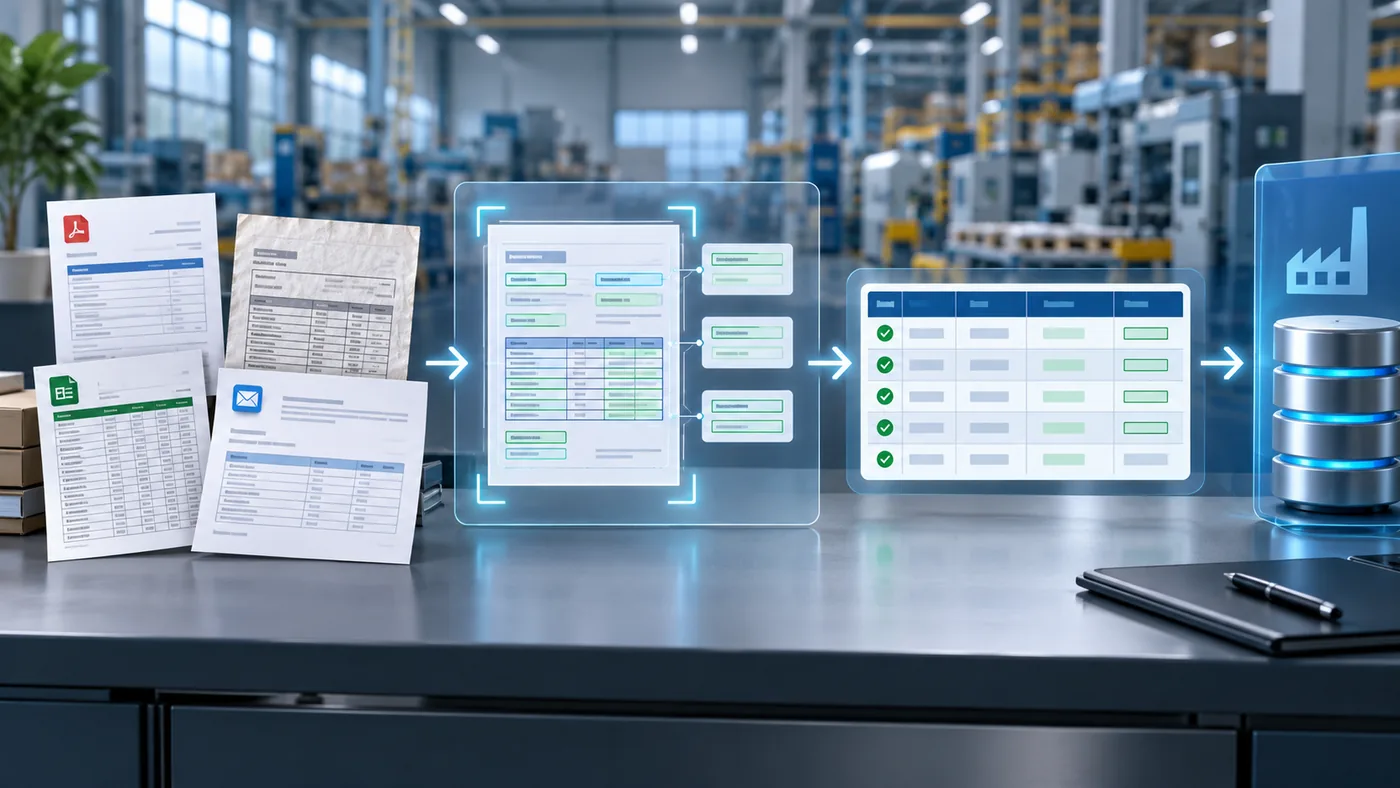
Customer purchase orders rarely arrive in one standard format. A manufacturer may receive a digital PDF from one buyer, a scanned form from another, an Excel file from a distributor, and order details written directly in an email from a long-standing customer.
Someone then has to find the relevant values, interpret customer-specific item references, and enter the order into the ERP. Purchase order data extraction can remove much of that manual work, but only when it is designed as part of a complete order-entry process.
Reading text from a document is the beginning. The useful outcome is accurate, validated data that can safely become a sales order.
What is purchase order data extraction?
Purchase order data extraction is the process of identifying and converting information from a customer purchase order into structured fields that software can use.
Those fields usually include:
- Customer name and account reference
- Purchase order number
- Order date
- Requested delivery date
- Billing and shipping addresses
- Product numbers and descriptions
- Quantities and units of measure
- Unit prices, discounts, and currency
- Shipping instructions
- Customer notes and references
The output might be JSON, XML, CSV, or another structured format. In a production workflow, that data is then matched and validated against ERP records before a sales order is created.
OCR and purchase order data extraction are not the same
Optical character recognition, or OCR, converts visible characters into machine-readable text. It is useful for scanned and image-based documents, but it does not fully understand the business meaning of the text.
Consider a line that contains:
- A customer item number
- A description
- A quantity
- A packaging unit
- A unit price
- A requested date
OCR can identify the characters. The extraction system must determine which value belongs to which field and which values repeat for each line item.
A complete workflow typically uses several capabilities together:
- File and document classification
- OCR when the file has no reliable text layer
- Layout and table interpretation
- Field and line-item extraction
- Confidence scoring
- Customer and product matching
- Business-rule validation
- Human review for exceptions
- ERP integration
This is why a successful project should be measured by valid ERP-ready orders rather than OCR accuracy alone.
The main sources of purchase order complexity
Different layouts
Every customer can place fields in different positions. Some use a traditional header and item table. Others group delivery details by line or put important instructions in a footer.
A system based entirely on fixed page coordinates requires a new template whenever a customer changes its document.
Digital PDFs and scanned documents
A digital PDF may contain clean text that can be read directly. A scan may contain rotation, shadows, handwriting, stamps, or low contrast. The extraction workflow should detect the file type and apply the right processing method.
Multi-page line-item tables
Large orders may continue across several pages. Headers may repeat, descriptions may wrap, and totals may appear only at the end. The system must preserve the relationship between columns and rows across page breaks.
Customer-specific product numbers
The number on the purchase order may not match the internal ERP item number. A customer-item cross-reference is often required before the line can become a valid sales order line.
Units and packaging
A customer may order boxes, cases, pallets, kilograms, feet, or individual units. The ERP may store and price the item in another unit. Extracting “10” correctly is not enough if the workflow applies the wrong unit of measure.
Dates and addresses
A document may contain an order date, requested ship date, requested delivery date, and contract date. It may also show several addresses. The workflow must assign each value to the correct business field.
How a reliable extraction workflow works
1. Capture the complete order context
The workflow should store the email, sender, subject, body, attachments, and received time. An attachment alone may not contain every instruction. The customer might add “ship the first two lines separately” in the email body.
The original files should remain available during review so employees can compare extracted values with their source.
2. Identify the purchase order
An order email can include specifications, drawings, terms, or prior correspondence. Document classification separates the purchase order from supporting files.
If multiple purchase orders arrive in one email, the workflow should treat them as separate transactions while preserving their shared message context.
3. Read text and layout
For digital documents, the system can use the embedded text and structural information. For scanned documents, OCR creates the text layer first.
Layout analysis then identifies elements such as:
- Labels and their values
- Header sections
- Tables and columns
- Repeating line items
- Totals and subtotals
- Footnotes and special instructions
The objective is to preserve relationships, not simply return a block of text.
4. Extract header fields
Header extraction captures information that applies to the complete order. Common examples include the purchase order number, customer, currency, order date, and ship-to address.
Each value should include its source location and a confidence result. Reviewers can then see exactly where the system found it.
5. Extract line items
Line-item extraction turns the order table into structured rows. It must keep quantities, units, prices, and requested dates attached to the correct product.
Descriptions can span multiple lines, and optional fields may appear only on some rows. The workflow should handle those variations without shifting values into the wrong columns.
6. Normalize the values
Extracted data often needs normalization before validation.
Examples include:
- Converting dates into an agreed format
- Separating address components
- Standardizing decimal and thousands separators
- Normalizing currency codes
- Converting unit abbreviations
- Removing presentation-only characters
- Preserving leading zeros in product and purchase order numbers
Normalization should never hide the original value. Both the source and normalized result should remain available for audit and review.
7. Match the data to ERP master records
Extraction returns what the customer wrote. ERP matching connects it to internal records.
The workflow may need to resolve:
- Sender or customer name to customer account
- Ship-to text to an approved delivery address
- Customer product number to internal item
- Customer unit to ERP unit of measure
- Submitted price to the relevant contract or price list
Approved cross-references should take priority. Fuzzy matching can help propose candidates, but ambiguous results should be reviewed rather than silently accepted.
8. Apply business validation
Validation determines whether the extracted and matched data can form a valid sales order.
Useful checks include:
- The purchase order number is present and not already processed
- The customer and ship-to location are active
- Every item is orderable
- Quantities and units follow packaging rules
- Prices match the applicable agreement or tolerance
- Required customer references are present
- Requested dates are valid
- Currency and sales organization are consistent
A value can be extracted perfectly and still fail a business rule. Extraction accuracy and transaction validity should therefore be tracked separately.
9. Route exceptions for review
Low-confidence or invalid fields should enter a review queue with a specific explanation.
A reviewer needs to see:
- The original document
- The highlighted source value
- The extracted result
- The proposed ERP match
- The failed validation rule
- The available correction or approval action
This makes exception handling faster and helps employees trust the workflow.
10. Create an ERP-ready order
Once the required fields pass validation, the structured data can be sent through an approved ERP interface. Early deployments commonly create a draft or blocked sales order that remains subject to human approval.
For the wider transaction flow, see how automated order entry works for manufacturers and distributors. For integration options across cloud, on-premise, and older ERP environments, read how AI sales order automation connects to your ERP.
What should the extracted data look like?
A structured result should be consistent even when the source documents are not.
A simplified record could contain:
| Section | Example fields |
|---|---|
| Source | Email ID, sender, attachment name, received time |
| Customer | Customer reference, matched ERP account |
| Order header | PO number, order date, currency |
| Delivery | Ship-to reference, requested date, instructions |
| Lines | Customer item, ERP item, quantity, unit, price |
| Validation | Confidence, rule results, exception reasons |
| Audit | Reviewer, corrections, approval time |
The exact schema depends on the ERP and business rules, but it should distinguish source values, normalized values, and matched ERP identifiers.
How to evaluate extraction quality
A single overall accuracy percentage can hide the fields that matter most. Measure quality by field and by business impact.
Track metrics such as:
- Purchase order number accuracy
- Customer and ship-to match rate
- Line-item detection rate
- Item mapping success rate
- Quantity and unit accuracy
- Price validation pass rate
- Percentage of orders requiring correction
- Average exception resolution time
- Percentage of orders that become valid ERP drafts
Break results down by customer, document format, and intake channel. A workflow may perform well on digital PDFs but need improvement for scanned or spreadsheet-based orders.
Choosing documents for a pilot
A representative pilot should include more than the cleanest files.
Collect examples with:
- Different customers and layouts
- Digital PDFs and scans
- Single-page and multi-page orders
- Short and long item tables
- Customer-specific product numbers
- Different units, currencies, and date formats
- Missing or conflicting values
- Supporting attachments
- Email-body instructions
The pilot should also include the corrections employees make today. Those decisions reveal the matching rules, tolerances, and exceptions the automated workflow must support.
Common implementation mistakes
Treating extraction as the finished product
Structured fields have limited value until they are matched, validated, reviewed, and delivered into the operational process.
Using confidence as the only control
A model can be confident and still return a value that violates ERP rules. Confidence scoring should work alongside master-data and business validation.
Ignoring customer-item mappings
Product cross-references are often central to reliable order creation. Without them, employees may still need to resolve every line manually.
Testing only clean documents
Production orders include scans, layout changes, handwritten notes, missing values, and unexpected attachments. Testing should reflect that range.
Hiding why an order failed
Employees need precise exception messages and the source evidence behind them. A generic failure queue quickly becomes another manual bottleneck.
Preparing for purchase order data extraction
Before selecting technology, document the actual path from customer email to ERP sales order.
Identify:
- The order channels and file formats in use
- The fields required by the ERP
- The customer and product mappings already available
- The validation and approval rules employees follow
- The exceptions that create the most delay
- The supported ERP integration methods
- The audit history the business must retain
- The metrics that will define success
Purchase order data extraction delivers the most value when it is connected to the entire order-entry workflow. The goal is not merely to read documents faster. It is to turn inconsistent customer orders into accurate, explainable, and reviewable ERP-ready data.